FlowTime — productivity timer
Start the timer and your time is logged automatically. Reports show how many hours went into each project, when you focus best and how often you get interrupted. Everything runs in the browser and nothing is uploaded.
Pomodoro keeps you from drifting right now; time tracking shows where the week went. This does both: every focus interval becomes a log entry.
Open the timerNothing to install, no sign-up. Open it and start working.
How to use it
Four steps, then it runs itself. If you have never used pomodoro, start with the defaults: 25 minutes of work, 5 minutes of break.
- 1
Write down what you are about to do
The task is not bookkeeping: it is what lets the reports show where your time went. Add it in the field on the right. You can estimate it in pomodoros — how many 25-minute rounds you expect to spend. Working without a task is fine too; the time simply goes to the general total.
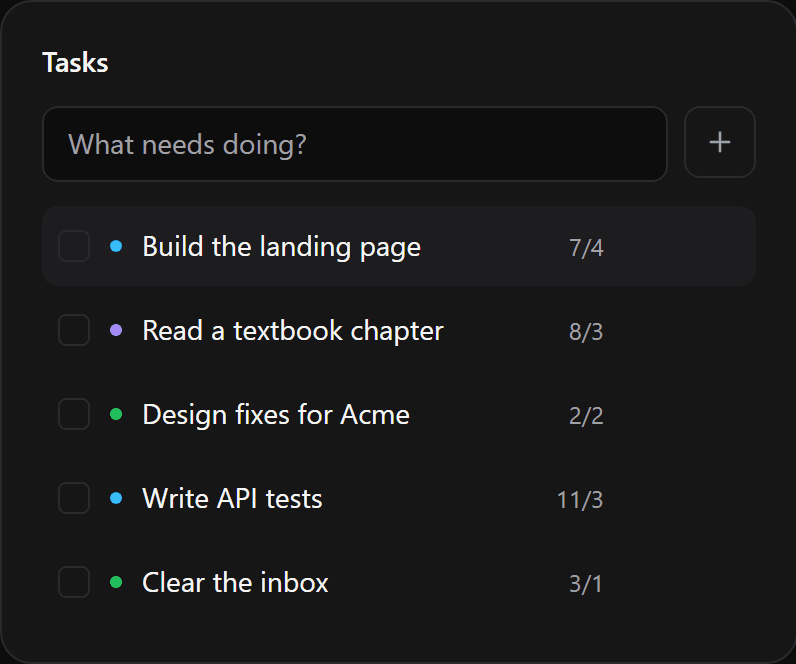
The new task field in the right column - 2
Press Start and work
While the countdown runs, stay on one thing. If someone does interrupt you, press “Interrupted” — it does not stop the session, but later you will see how often you were pulled away. When the time is up you hear a chime and a break begins. You can close the tab: the timer follows the wall clock rather than page ticks, so it resumes at the right point.

Timer screen: countdown ring, current task and the day summary on the right - 3
Check the log at the end of the day
Every finished session lands here on its own. Entries are grouped by day and any of them can be edited: shift the time, change the task, add a note. If you forgot to start the timer, add the entry by hand with “Add entry” — otherwise the reports will lie.
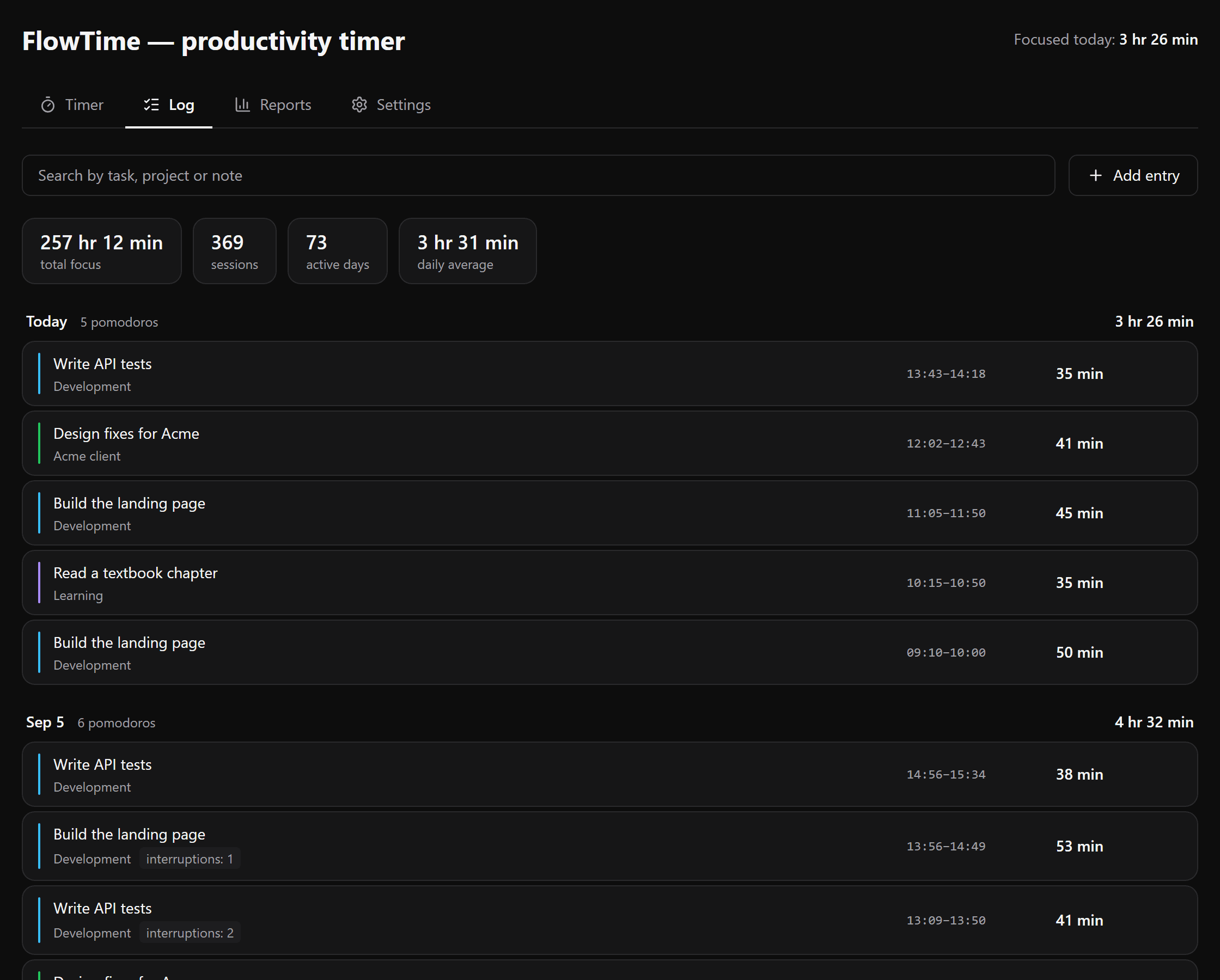
Time log: entries grouped by day with duration and project - 4
Look at the reports after a week
One day proves nothing, but a week already shows the shape: when you focus best, how much went into each project, how often sessions break off halfway. Switch the period in the top right corner.

Reports: daily focus, project split and productive hours
Keyboard shortcuts
- Spacestart or pause
- Rreset the timer
- Snext interval
- Imark an interruption
Who it is for
- Freelancers: see the hours per client and what is actually billable
- Students: know how much you really studied, not how long you sat at the desk
- Remote workers: helps you not stretch the day from nine to midnight
- Anyone who wants to check where working time actually goes
What FlowTime does
- Pomodoro with custom intervals, auto-started breaks and a strict no-pause mode
- Time tracking per task and project, with manual entries you can add after the fact
- Reports: daily focus, productive hours, project split and a year activity map
- JSON and CSV export, offline support, no account required
Questions
- Where is my data stored?
- In your browser localStorage. Nothing is sent to a server, so we never see your statistics or task names. The trade-off: clearing site data wipes the log, which is why settings include a backup export.
- What happens if I close the tab mid-session?
- No time is lost. The timer follows the wall clock rather than page ticks, so it resumes at the correct point. If the interval expired while you were away, it is credited for exactly its planned length.
- How is this different from a plain pomodoro timer?
- Pomodoro manages attention in the moment, a tracker shows where time actually went. This does both: every focus interval becomes a log entry that feeds the project reports.
- Can I move my data to another computer?
- Yes. Export the JSON backup in settings and load it on the other device. Import merges records instead of replacing them, so the work you did today is kept.